CurrentChecked against the product 1 September 2026
Run a pay week
The pay run gathers a week of hours into the numbers you pay against — built from what each person submitted on their timesheet, or from their dockets if they haven’t submitted one.
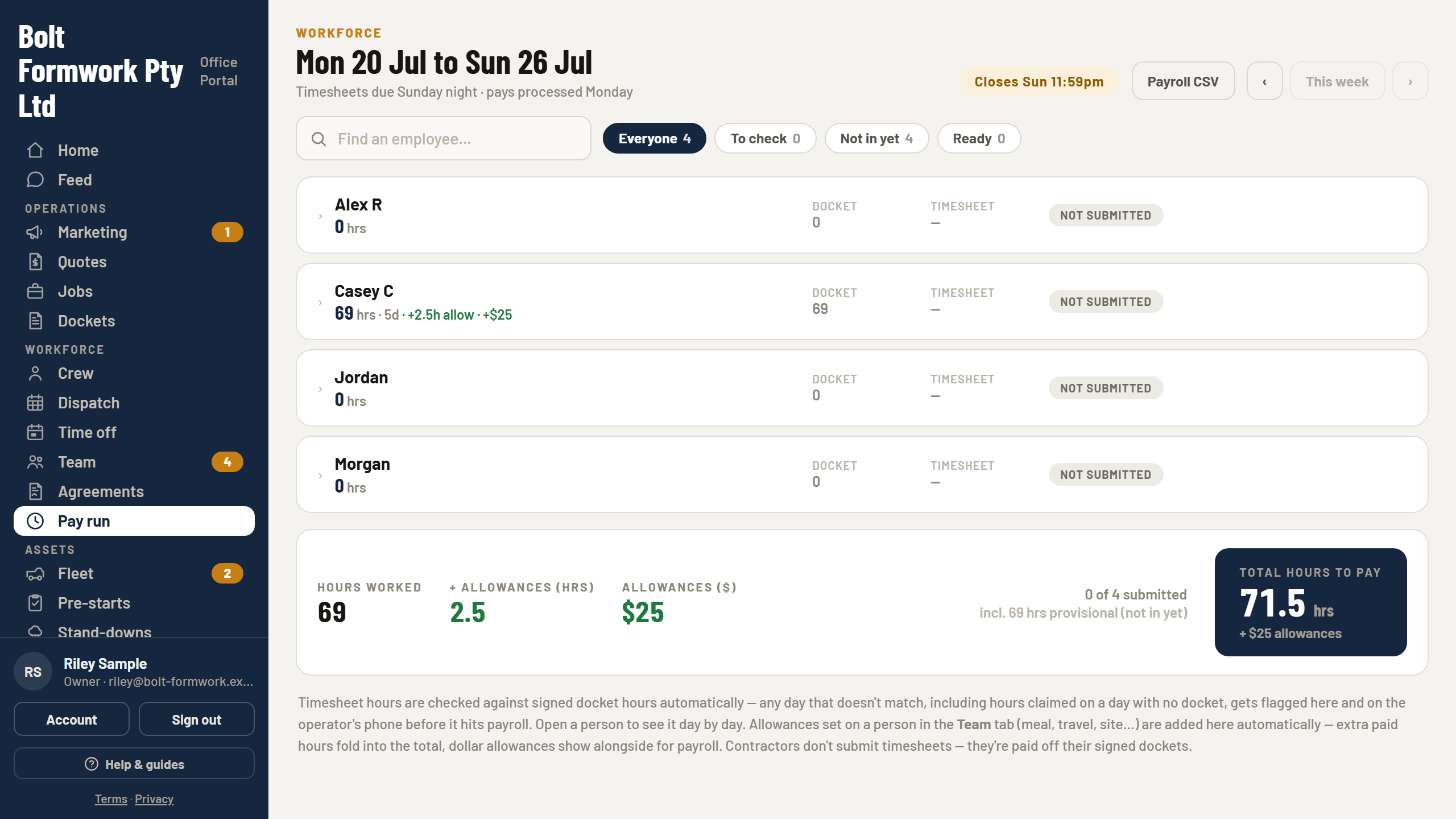
- Open Pay run. It opens on the current pay week — which runs from the day you set under Settings → the working day, not a fixed day of the week.
- Each row shows the person, their hours, and whether their timesheet is in. Filter to Needs a check or Not submitted to find what’s outstanding.
- Where a timesheet and the dockets disagree, the row says so — that’s the one to look at before you pay it.
- Open a person to see their days, or print their pay sheet — a PDF of their timesheet plus every docket behind it, which is the copy to hand your bookkeeper or keep on file.
- Use the week arrows to step back through past weeks; a past week is read-only.
Careful
Someone submitted the wrong week? Unlock their timesheet from their row and they can fix and re-submit it from their phone.
THE HAND-OFF
Lintelo does the site side — hours, allowances and totals, with the dockets behind every figure. It doesn’t calculate PAYG or super: that’s your payroll system’s job, and the per-person pay sheet is what you hand it.
Contractors are paid on their docketed hours rather than a timesheet, and appear in the same run.
Tip
Timesheets that nobody submits don’t stall the run — at 9am on the first morning of the new pay week, last week’s unsubmitted sheets submit themselves: saved days exactly as typed, blank days claiming the docketed hours. Empty weeks are left alone.