CurrentChecked against the product 1 September 2026
Approve dockets and get them to the client
Dockets arrive already signed by the client’s site rep, carrying a SIGNED chip. The client has already been emailed a copy automatically at the moment of signing — so approving isn’t about sending anything. It’s your internal check that the hours are right before they feed pay and billing.
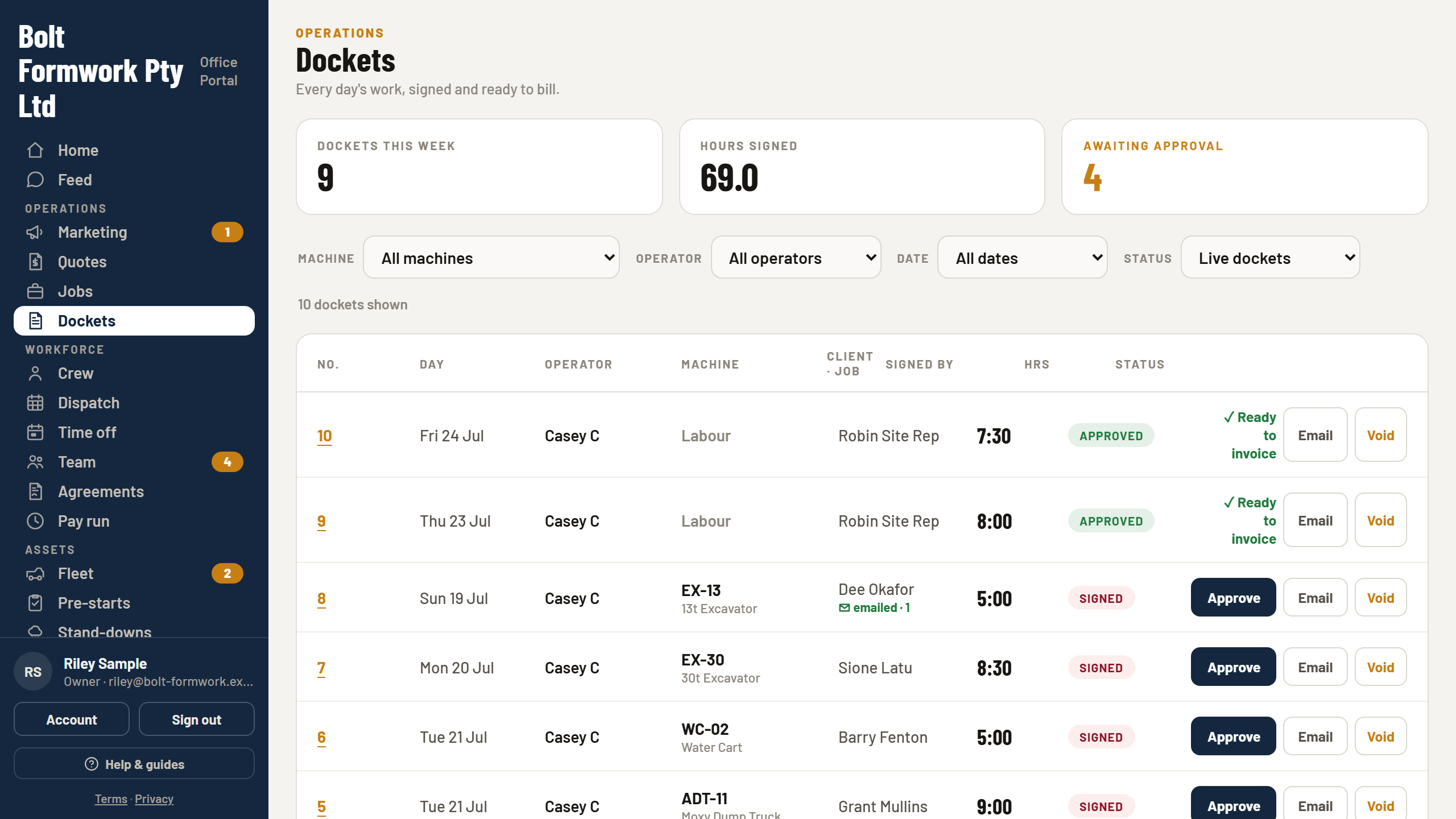
- Open Dockets and use the To approve filter.
- Open a docket to see the hours, machine, job and the rep’s signature.
- If it’s right, hit Approve.
When something’s wrong
A signed docket is a record of what the client agreed to, so it can’t be quietly edited. Your options are to adjust the downtime if that’s the disagreement, or to void it with a reason — which keeps it on the books, struck through and auditable, rather than making it disappear. A voided docket can be restored.
- SIGNED
- The rep signed on site. Waiting on your approval.
- AWAITING SIGNATURE
- Sent to the client to sign by email, not answered yet.
- APPROVED
- Checked by the office. Feeds timesheets, job hours and invoicing.
- VOIDED
- Struck out with a reason. Kept on the books.
Tip
Set the docket emails on each job (in Jobs) once, and every docket for that job reaches the right people the moment it’s signed — without anyone in the office touching it.
Once a docket is invoiced through Xero it’s marked Invoiced, so it can’t be billed twice.