CurrentChecked against the product 1 September 2026
Your first docket, start to finish
On this page
A docket is the record of a day’s work: who, what machine, which job, how many hours. The important thing to understand is who signs it: the docket is signed on site by your client’s representative, on the operator’s phone. That signature is what makes it billable.
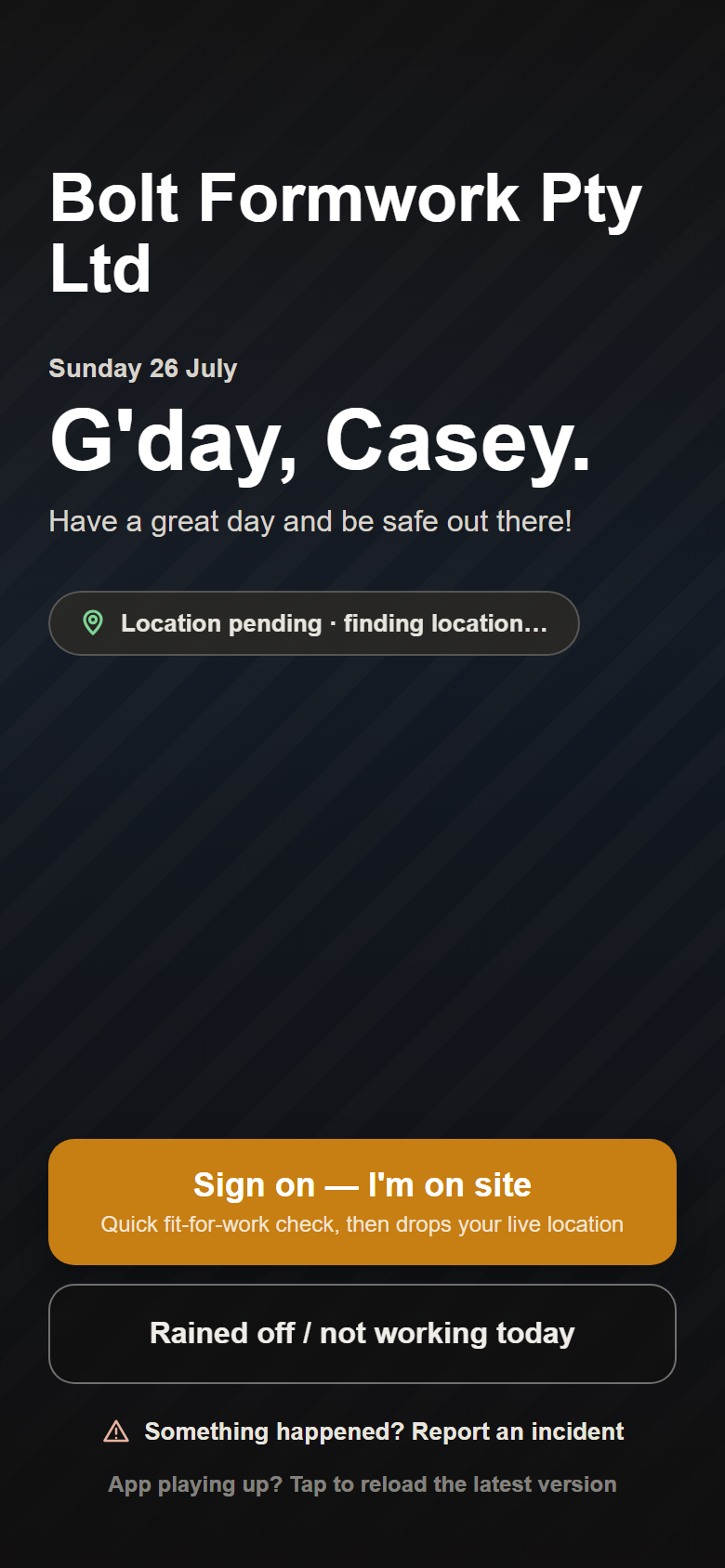
On the phone (crew)
- Open the app and Sign on — three fit-for-work questions, and you’re on for the day.
- Do your pre-start on the machine — the office can make this compulsory before a docket can be started.
- Start the docket. The job and the machine are already filled in from what the office assigned, with a Change link if the day went differently.
- Enter start and finish times, breaks, loads and any downtime. The hours total themselves.
- Hand the phone to the client’s site rep. They print their name and sign under Authorised & accepted by, and the operator taps Authorise & accept.
Tip
No rep on site? Tap NO SITE REP AVAILABLE — the docket is saved with everything entered and waits on the operator’s home screen to be signed next time they’re there. Or use Or email it to the client to sign, which sends them a link and parks the docket as Awaiting signature.
In the office
- The signed docket lands in Dockets with a SIGNED chip — use the To approve filter to see everything waiting on you.
- Open it, check the hours against the signature, and hit Approve.
Good to know
The client is emailed the docket automatically the moment it’s signed — it goes to the docket addresses set on the job, so nobody has to remember to send it. Approving is your internal check before the hours feed pay and billing.
Once approved, the docket flows onto the operator’s timesheet and the job’s hours on its own — nothing is re-typed.